OrbbecSDK_v2
C++ Sample: 1.stream.decimation
Overview
This sample demonstrates how to configure hardware decimation on Orbbec devices. The user selects the origin resolution and decimation factors, and the SDK auto-selects format and FPS.
Knowledge
Some devices (e.g. Gemini 435Le, Gemini 305) support hardware decimation, which downsamples the original sensor resolution to a smaller output resolution.
A PresetResolutionConfig defines the origin resolution and decimation factors for Depth and IR sensors.
Code Overview
Step 1: Select origin resolution
List unique origin resolutions deduplicated from all available preset configs.
std::vector<OBPresetResolutionConfig> matchedPresets;
OBPresetResolutionConfig originPreset = selectOriginResolution(device, matchedPresets);
Step 2: Select decimation factor
For the chosen resolution, show available decimation factors and let the user pick one. If only one option exists, it is auto-selected.
OBPresetResolutionConfig presetConfig = selectDecimation(matchedPresets);
Apply preset config
Apply the selected config to the device. Gemini 305 uses a different decimation mechanism, so this step is skipped for 305.
if(!ob_smpl::isGemini305Device(vid, pid)) {
    device->setStructuredData(OB_STRUCT_PRESET_RESOLUTION_CONFIG, (uint8_t *)&presetConfig, sizeof(presetConfig));
}
Enable streams
Format and FPS are auto-selected by the SDK (OB_FORMAT_ANY / OB_FPS_ANY).
- Gemini 305 uses the decimation-config-based API:
OBHardwareDecimationConfig decimationConfig{};
decimationConfig.originWidth  = originWidth;
decimationConfig.originHeight = originHeight;
decimationConfig.factor       = presetConfig.depthDecimationFactor;
config->enableVideoStream(OB_SENSOR_DEPTH, decimationConfig);
config->enableVideoStream(OB_SENSOR_IR_LEFT, decimationConfig);
config->enableVideoStream(OB_SENSOR_IR_RIGHT, decimationConfig);
- Other devices find the matching profile by resolution and enable it directly:
auto profile = findProfile(depthSensor, originWidth, originHeight, presetConfig.depthDecimationFactor);
config->enableStream(profile);
The findProfile function handles two cases:
- Profiles with decimation (
factor > 0): match bydecimationConfig.originWidth/originHeight - Profiles without decimation (
factor == 0): match by output resolutionoriginWidth / decimationFactor
Run Sample
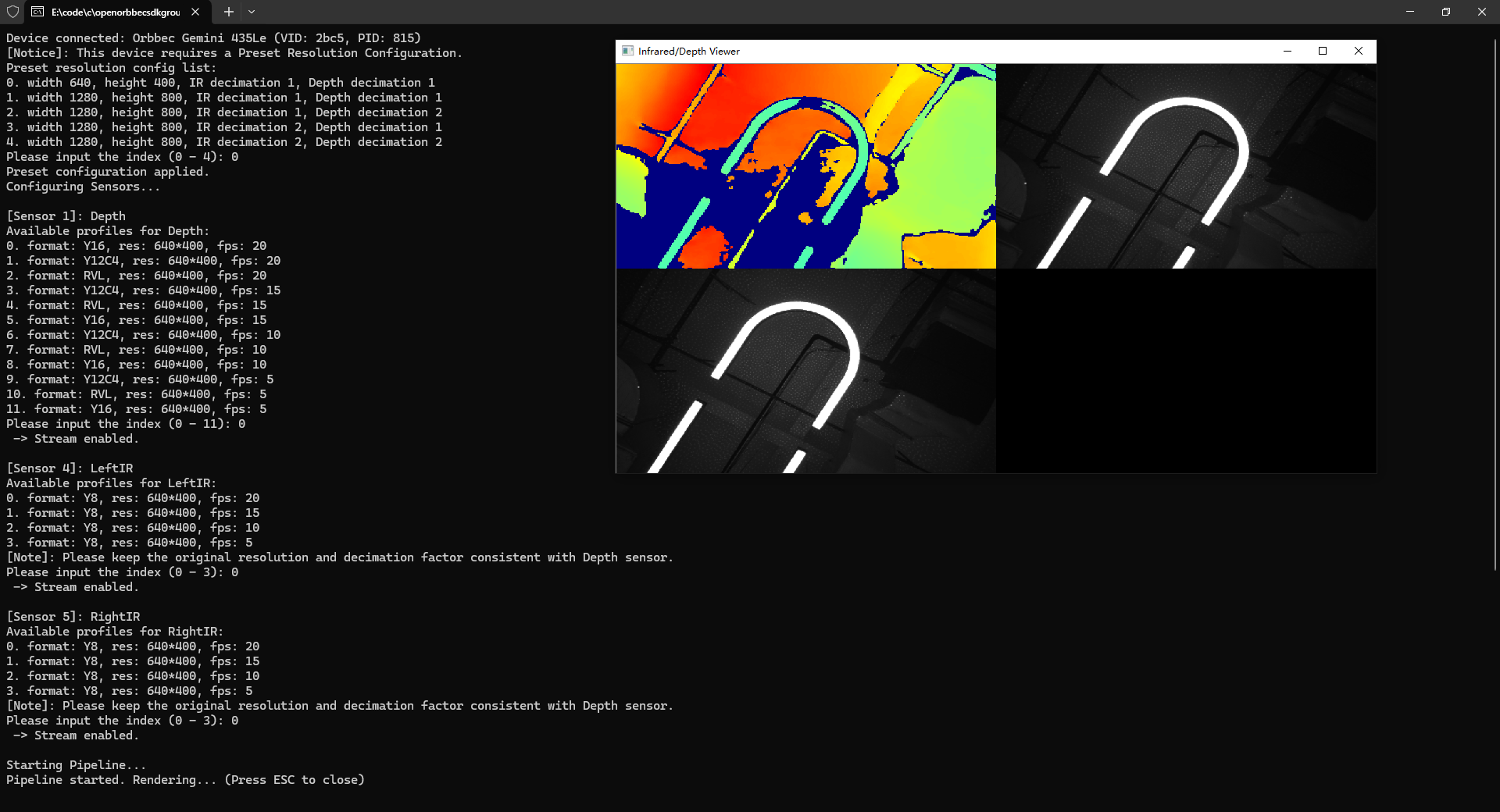
Follow the console prompts to complete the 2-step selection:
- Select an origin resolution
- Select decimation factors for Depth and IR
Press the Esc key in the window to exit the program.
Result