6.5. Performance Benchmark Tools
This section introduces the performance benchmark tools, their purpose, and the metrics they help measure.
6.5.1. common_benchmark_node.py
common_benchmark_node.py monitors Orbbec camera performance in a ROS environment. It collects and records subscriber-side metrics such as image frame rate, latency, system resource usage, and estimated frame loss to help evaluate camera node stability and performance. Statistics are updated once per second.
Features:
Measures the frame rate and latency of images received by the subscriber (current, minimum, maximum, and average).
Monitors camera node CPU/ARM usage (current, minimum, maximum, and average).
Estimates subscriber-side frame loss from image message timestamps.
Supports
color,left_color,right_color,depth,ir,left_ir, andright_irimage streams, as well as compressed image and point cloud topics.Prints real-time statistics at 1 Hz and saves results to a CSV file.
Supports configurable runtime and CSV output path.
In ROS 2, the node estimates subscriber-side frame loss from adjacent image message timestamps. When --ideal_fps is set, it uses the specified ideal frame rate; otherwise, it learns the nominal frame interval from received image timestamps.
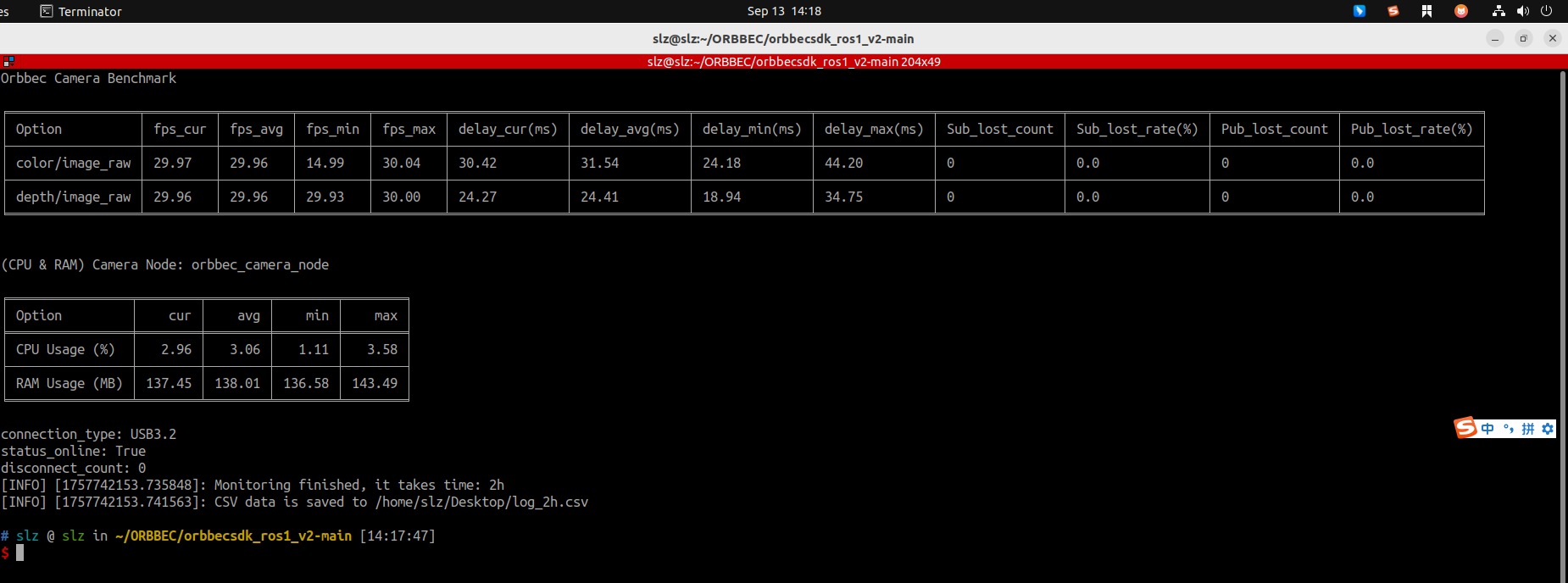
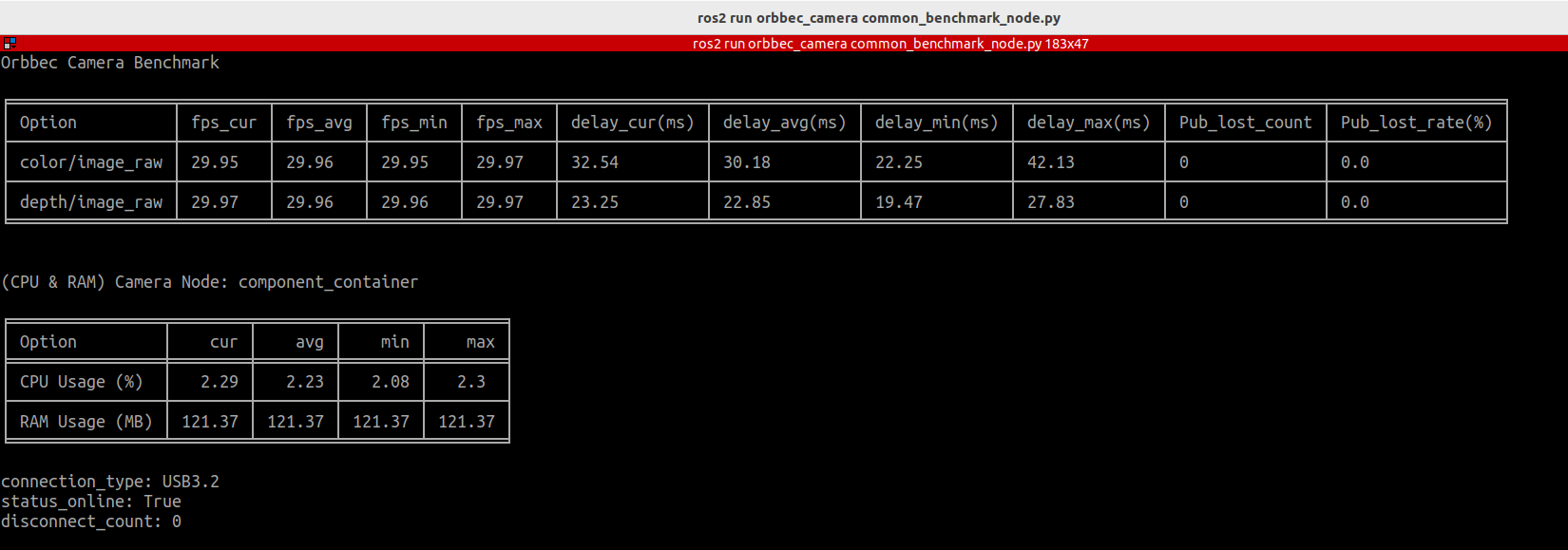
Run example:
ros2 run orbbec_camera common_benchmark_node.py \
    --run_time 2h  \
    --csv_file /path/to/log.csv
Parameters:
--run_time: Monitoring duration, specified as a time string such as"10s","5m","1h", or"2d". The default is 10 seconds.--csv_file: Output CSV file path. By default, it is saved in the workspace directory ascamera_monitor_log.csv.--ideal_fps: Ideal frame rate used for subscriber-side frame-loss estimation. A value greater than0overrides the interval learned from image timestamps.--camera_names: Camera namespaces to monitor, separated by commas.--topics: Topics to monitor, separated by commas. Use raw stream names such ascolor,left_color,right_color, or full raw/compressed image and point cloud topics. Automatic discovery selects only raw image topics; compressed images and point clouds require full topic names.
Multi-camera monitoring example:
ros2 run orbbec_camera common_benchmark_node.py \
--run_time 1h \
--csv_file /tmp/cam_log.csv \
--camera_names camera_01,camera_02 \
--topics color,left_color,right_color
6.5.2. service_benchmark_node.py
service_benchmark_node monitors service call performance. It measures service call success rate and execution time.
Features:
Benchmarks a single service call and measures latency and success rate.
Benchmarks multiple services defined in a YAML configuration file.
Can save benchmark results to a CSV file.
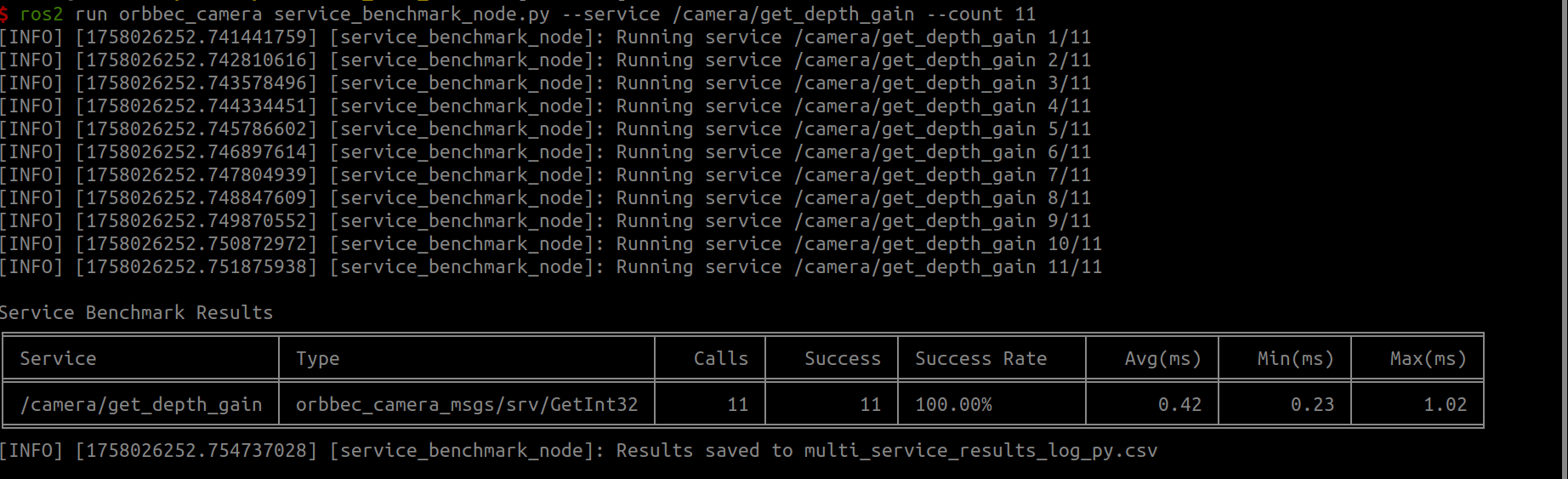
When collecting data for multiple services, using a CSV file is recommended for analysis.
6.5.2.1. ROS2 C++
Single service benchmark:
ros2 run orbbec_camera service_benchmark_node \
    --ros-args \
    -p service_name:=/camera/get_depth_gain \
    -p service_type:=orbbec_camera_msgs/srv/GetInt32 \
    -p count:=10
Multiple service benchmark (YAML configuration):
ros2 run orbbec_camera service_benchmark_node \
    --ros-args \
    -p yaml_file:=/path/to/default_service.yaml
6.5.2.2. ROS2 Python
Single service benchmark:
ros2 run orbbec_camera service_benchmark_node.py --service /camera/get_depth_gain --count 10
Multiple service benchmark (YAML configuration):
ros2 run orbbec_camera service_benchmark_node.py --yaml_file /path/to/default_service.yaml
Example YAML configuration is available at orbbec_camera/scripts/default_service.yaml:
default_count: 10

services:
- name: /camera/get_auto_white_balance
  type: orbbec_camera_msgs/srv/GetInt32
- name: /camera/get_color_exposure
  type: orbbec_camera_msgs/srv/GetInt32
- name: /camera/get_color_gain
  type: orbbec_camera_msgs/srv/GetInt32
- name: /camera/get_depth_exposure
  type: orbbec_camera_msgs/srv/GetInt32
- name: /camera/get_depth_gain
  type: orbbec_camera_msgs/srv/GetInt32
- name: /camera/get_device_info
  type: orbbec_camera_msgs/srv/GetDeviceInfo
- name: /camera/send_software_trigger
  type: std_srvs/srv/SetBool
  request: {data: false}
- name: /camera/set_auto_white_balance
  type: std_srvs/srv/SetBool
  request: {data: false}
- name: /camera/set_color_ae_roi
  type: orbbec_camera_msgs/srv/SetArrays
  request: {data_param: [0,1279,0,719]}
- name: /camera/set_color_auto_exposure
  type: std_srvs/srv/SetBool
  request: {data: false}
- name: /camera/set_color_exposure
  type: orbbec_camera_msgs/srv/SetInt32
  request: {data: 30}
- name: /camera/set_color_flip
  type: std_srvs/srv/SetBool
  request: {data: false}
- name: /camera/set_color_gain
  type: orbbec_camera_msgs/srv/SetInt32
  request: {data: 20}
- name: /camera/set_color_mirror
  type: std_srvs/srv/SetBool
  request: {data: false}
- name: /camera/set_color_rotation
  type: orbbec_camera_msgs/srv/SetInt32
  request: {data: 90}
- name: /camera/set_depth_ae_roi
  type: orbbec_camera_msgs/srv/SetArrays
  request: {data_param: [0,1279,0,719]}
- name: /camera/set_depth_auto_exposure
  type: std_srvs/srv/SetBool
  request: {data: false}
- name: /camera/set_depth_exposure
  type: orbbec_camera_msgs/srv/SetInt32
  request: {data: 3000}
- name: /camera/set_depth_flip
  type: std_srvs/srv/SetBool
  request: {data: false}
- name: /camera/set_depth_gain
  type: orbbec_camera_msgs/srv/SetInt32
  request: {data: 200}
6.5.3. ob_benchmark_node
This tool benchmarks the performance of different OrbbecSDK_ROS2 camera configurations. Benchmark results depend on the camera and settings used. It currently only applies to ROS 2 Humble.
Example usage code is available in example.
6.5.3.1. Tool Configuration
The configuration file is orbbec_camera/config/tools/startbenchmark/start_benchmark_params.json.
{
    "start_benchmark_params": {
        "camera_name": [
            "camera_01",
            "camera_02",
            "camera_03",
            "camera_04"
        ],
        "process_name": "component_conta",
        "switch_cycle": 300,
        "test_cycle": 1,
        "skip_number": 30
    }
}
camera_name: Camera names to configure, such as"camera_01"or"camera_02".process_name: Process name to monitor. For example,"component_conta"monitors the container process data.switch_cycle: Configuration switch interval in seconds. For example,300means the configuration switches every 300 seconds.test_cycle: Test interval in seconds. For example,1means the tool collects monitored process data every second.skip_number: Number of data points to skip. For example,30means the first 30 data points are ignored.
6.5.3.2. Camera Configuration (Launch Files)
The launch folder contains multiple .launch.py files (ob_benchmark_0.launch.py, ob_benchmark_1.launch.py, …, ob_benchmark_19.launch.py). Each file corresponds to a different camera configuration.
6.5.3.3. Run ob_benchmark
source install/setup.bash
ros2 run orbbec_camera ob_benchmark_node
6.5.3.4. Output Data Files
Output data files are stored in the ob_benchmark folder with names such as 0.csv, 1.csv, …, 19.csv.
0.csvcontains data from theob_benchmark_0.launch.pyconfiguration.1.csvcontains data from theob_benchmark_1.launch.pyconfiguration.
6.5.4. start_benchmark_node
start_benchmark_node is the subscriber used in the benchmark workflow. It subscribes to multi-camera color, left_color, right_color, depth, left_ir, right_ir, and point cloud topics according to camera_name in start_benchmark_params.json. It is usually used together with benchmark launch files.
ros2 run orbbec_camera start_benchmark_node